 Batch Screenshot
Images for product and sales pages
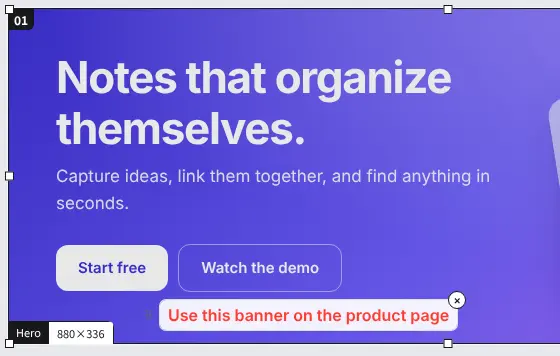
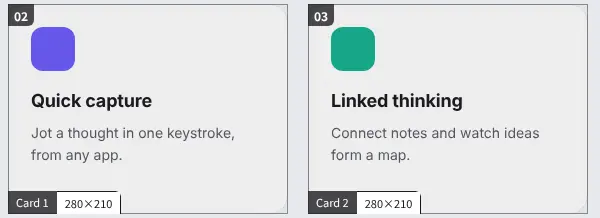
Cut a product page into several images of the same size. Save the layout once and load the same frames on the next product page.
Chrome / Edge extension
Place as many frames as you like on a page and press one button. It scrolls for you, captures every frame, and saves them all in one ZIP. Free, no sign-up.
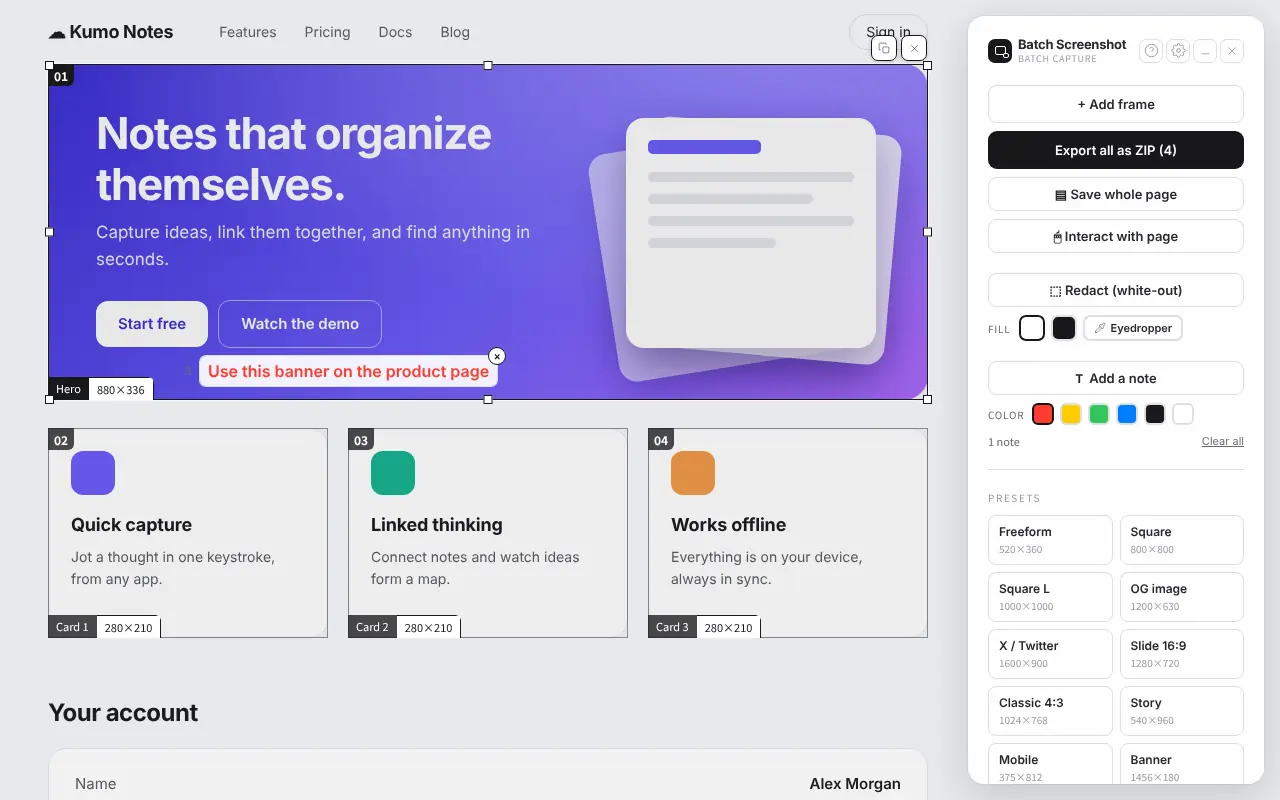
It started with a routine job: cutting a manufacturer's product pages into several fixed-size images to build sales pages. What used to take one round per image now takes one export.
Cut a product page into several images of the same size. Save the layout once and load the same frames on the next product page.
Write a note on the capture before you save it. The picture explains itself, so there is less back and forth.
Clip just the part of a site that caught your eye and keep it for yourself with a short note.
 Love this spacing
Colors for next time
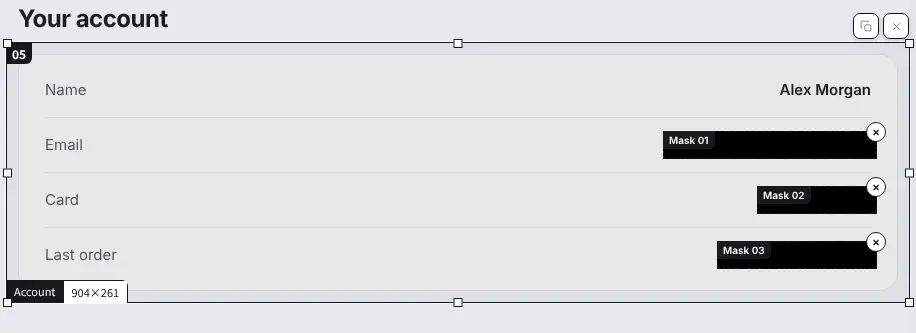
Cover personal or confidential details before saving, then use the image as it is.
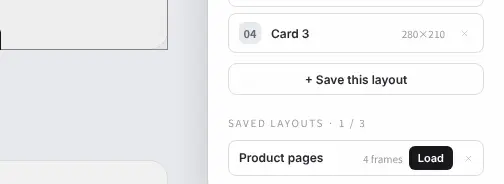
Save the whole layout, with every frame’s position and size. Next time you open the page, load it and capture exactly the same areas to compare before and after.
Turn part of an article or landing page into an image at a size you use often. Common sizes are one click away.
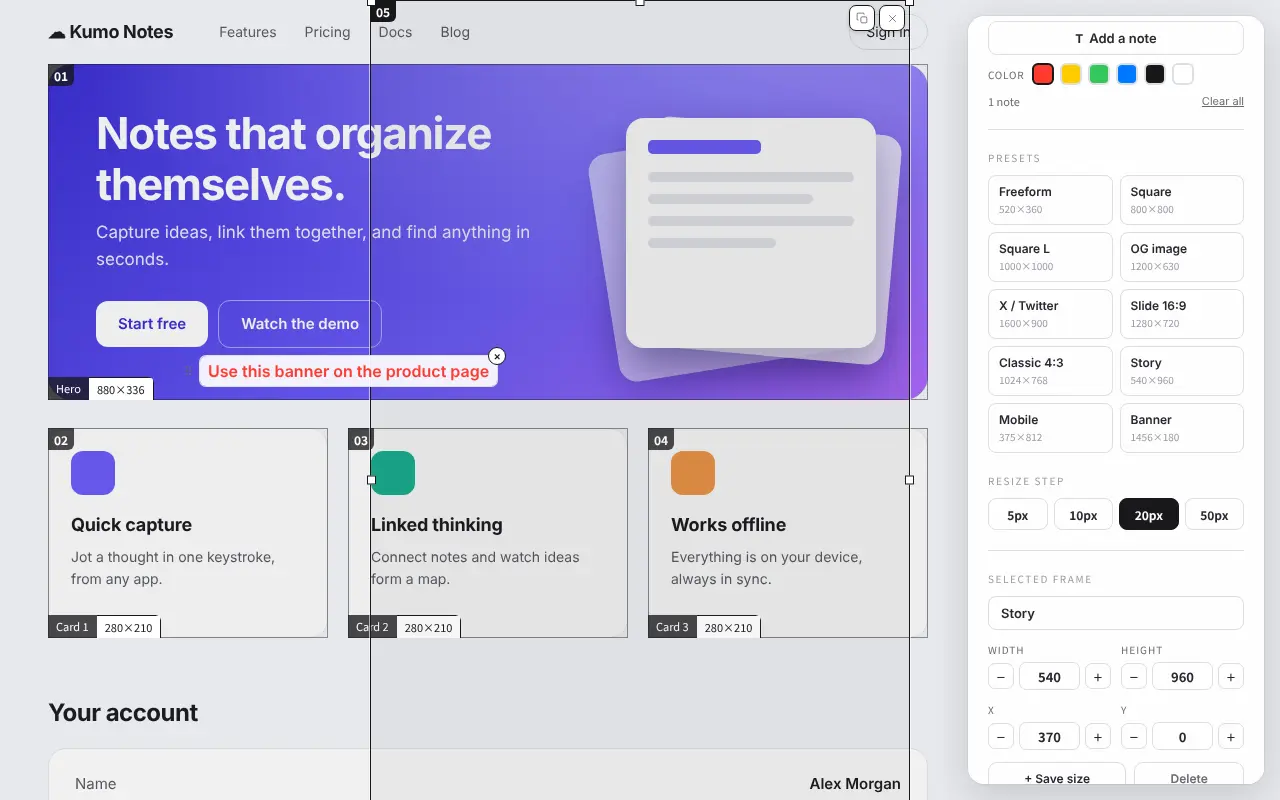
Open it from the toolbar icon or with Alt + Shift + S. Use “Add frame” or a preset to put a frame where you want to capture.
Drag or type numbers to adjust down to the pixel. Frames snap to each other. Cover what should stay hidden, and add a note for what you want to say.
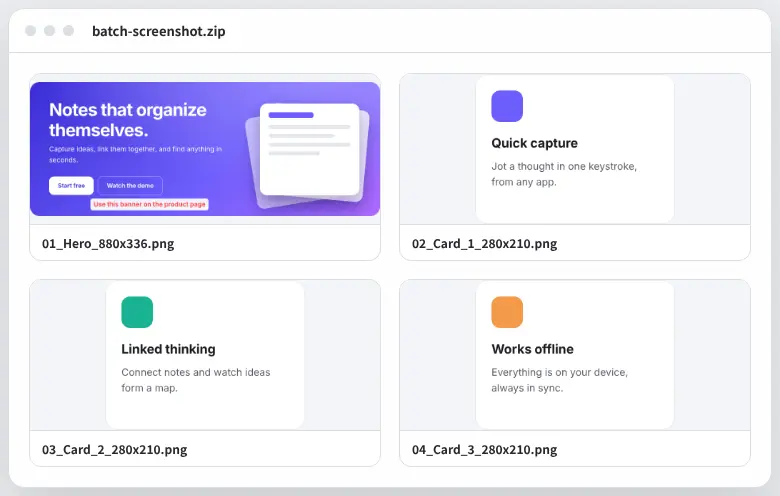
Press “Export all as ZIP”. It scrolls and captures automatically, and every frame is saved as its own image in one ZIP.
Capturing, cropping and zipping all happen inside your browser. No account, no analytics, no ads.
Read the privacy policyYes. Everything described on this page is free. We may offer additional features as a paid option later, and we plan to keep the current features free.
Google Chrome and Microsoft Edge on a computer. Edge can install it from the Chrome Web Store as well. It does not run on phones.
Yes. It scrolls the page while capturing and stitches the result into one image. Keep the tab in front until it finishes.
Yes. “Save this layout” keeps the position and size of every frame. Next time, on the same page or one built the same way, press “Load” and the frames are back in place. You can keep up to three layouts.
Browser pages such as settings and the Web Store cannot be captured. On sites where only part of the page scrolls, that part is captured as far as it is visible.
In your Downloads folder, as “batch-screenshot.zip”. The images inside are numbered, like “01_Name_880x336.png”. You can change the naming rule in Settings.
Email info@nmdy.dev. Small things you noticed while using it are welcome too.
Add it and click the icon. No sign-up needed.
Coming soon to the Chrome Web Store